
Artificial intelligence is accelerating faster than any other technology in today’s enterprise landscape. Organizations are rapidly deploying copilots, intelligent search, and generative AI assistants to transform employee productivity and customer experience.
However, without proper guardrails and data governance, AI systems can unintentionally expose sensitive documents, leak tenant data, or produce responses grounded in information a user should never have seen. As AI architects, a key responsibility is ensuring that the retrieval pipeline is secure, compliant, and aligned with organizational policy.
In this article I will demonstrate one design pattern for achieving secure, AI document retrieval: document-level access control (DLAC) and security-filtered Retrieval-Augmented Generation (RAG) with Azure Blob Storage and Azure AI Search.
Document-Level Access Methodologies
Security Filters
A simple string-based method where your application sends a user ID or group ID as a filter in the search query. Documents that don’t match are automatically excluded. This approach works with any API version or SDK and is the most flexible way to enforce document-level access today.
ACLs / RBAC Scopes (Preview)
Azure AI Search can also enforce identity-based access by comparing the caller’s Microsoft Entra ID token to permission metadata stored on each document. ACLs apply to ADLS Gen2 files and directories, while RBAC scopes apply to both ADLS Gen2 and Azure Blob Storage. This built-in DLAC capability is currently in preview via REST and preview SDKs.
More about these a approaches can be found here.
Getting Started
Prerequisites
-
An ADLS Gen2 Azure Storage Account
- Your Blob Storage account must support:
- Hierarchical namespace
- POSIX-style ACLs
- User & group-based ACLs with
- Sample data stored in the ADLS Gen2 Container
- For this demo I am using the sample “State Parks” data sets from here:
- I have configured the folder and files with ACL permissions so they can be mapped to correct allowed user and group identifiers.
- Your Blob Storage account must support:
-
Pre-created Microsoft Entra ID Groups & User Assignments
- You must have at least one security group (e.g., FinanceTeam, HR, Operations)
- Users assigned into their groups appropriately
- These user/group IDs will be embedded into the search index as part of DLAC metadata.
-
Role Based Access Enabled for AI Search
- Either use a system or user assigned managed identity to give the AI Search service the necessary Storage Blob Data Reader role on the storage account.
-
VS Code with a Rest Client
- This example will use the REST API to configure and validate the Blob ACLs so you will need to be familiar with using REST APIs.
How To
You can follow along using the steps below or access the code from the following repo.
Step 1: Generate a REST Token
Use the following code block to generate and validate your REST token to make sure you are getting an HTTP Status Code 200 (OK).
## Get your AI Search Service Url from Azure portal

@baseUrl="Your search service url here"

### To Get token, run the following Azure CLI command using your signed in user:
### az account get-access-token --scope https://search.azure.com/.default --query accessToken --output tsv

@token="your search token here"

##Send Request

GET {{baseUrl}}/indexes?api-version=2025-09-01  HTTP/1.1
   Content-Type: application/json
   Authorization: Bearer {{token}}
Keep this token as you will need it for the upcoming steps.
Step 2: Create Your Search Index
Run the following code block to create your AI Search Index. Replace the variables with your own.
###Create Index

@baseUrl="Your search service url here"

@token="Your search token here"

##Send Request

Post {{baseUrl}}/indexes?api-version=2025-08-01-preview  HTTP/1.1
   Content-Type: application/json
   Authorization: Bearer {{token}}

{
  "name" : "acl-index",
  "fields": [
    {
      "name": "name", "type": "Edm.String",
      "searchable": true, "filterable": false, "retrievable": true
    },
    {
      "name": "description", "type": "Edm.String",
      "searchable": true, "filterable": false, "retrievable": true
    },
    {
      "name": "location", "type": "Edm.String",
      "searchable": true, "filterable": false, "retrievable": true
    },
    {
      "name": "state", "type": "Edm.String",
      "searchable": true, "filterable": false, "retrievable": true
    },
    {
      "name": "AzureSearch_DocumentKey", "type": "Edm.String",
      "searchable": true, "filterable": false, "retrievable": true,
      "stored": true,
      "key": true
    },
    {
      "name": "UserIds", "type": "Collection(Edm.String)",
      "permissionFilter": "userIds",
      "searchable": true, "filterable": true, "retrievable": true
    },
    {
      "name": "GroupIds", "type": "Collection(Edm.String)",
      "permissionFilter": "groupIds",
      "searchable": true, "filterable": true, "retrievable": true
    },
    {
      "name": "RbacScope", "type": "Edm.String",
      "permissionFilter": "rbacScope",
      "searchable": true, "filterable": true, "retrievable": true
    },
    {
      "name": "metadata_storage_path",
      "type": "Edm.String",
      "searchable": true,
      "filterable": true,
      "retrievable": true,
      "stored": true,
      "sortable": false,
      "facetable": true,
      "key": false,
      "synonymMaps": []
    }
  ],
  "permissionFilterOption": "enabled"
}
Step 3: Connect to Your Data Source
This code block will allow you to connect to your ADLS Gen2 Storage account and configure it as a data source for your AI Search Index.
###Connect index to data source

@baseUrl="Your search service url here"

@token="Your search token here"

##Send Request

Post {{baseUrl}}/datasources?api-version=2025-08-01-preview  HTTP/1.1
   Content-Type: application/json
   Authorization: Bearer {{token}}


{
    "name" : "The Name for Your Data Source",
    "type": "adlsgen2",
    "indexerPermissionOptions": ["userIds", "groupIds", "rbacScope"],
    "credentials": {
    "connectionString": "ResourceId=/subscriptions/"Your Subscription Here"/resourceGroups/"Your AI Search Resource Group Here"/providers/Microsoft.Storage/storageAccounts/"Your Storage Account Name Here"/;"
    },
    "container": {
    "name": "Your Storage Container Here",
    "query": null
    }
}
Step 4: Create and Run Your Indexer
This code block will deploy the Search Indexer service and run the indexer upon deployment. For this lab, the indexer is set to manual runs only.
###Create and run index

@baseUrl="Your search service url here"

@token="Your search token here"

##Send Request

Post {{baseUrl}}/indexers?api-version=2025-08-01-preview  HTTP/1.1
   Content-Type: application/json
   Authorization: Bearer {{token}}


{
  "name" : "acl-indexer",
  "dataSourceName" : "aisearchindexrag",
  "targetIndexName" : "acl-index",
  "parameters": {
    "batchSize": null,
    "maxFailedItems": 0,
    "maxFailedItemsPerBatch": 0,
    "configuration": {
      "dataToExtract": "contentAndMetadata",
      "parsingMode": "delimitedText",
      "firstLineContainsHeaders": true,
      "delimitedTextDelimiter": ",",
      "delimitedTextHeaders": ""
      }
  },
  "fieldMappings": [
    {
      "sourceFieldName": "metadata_user_ids",
      "targetFieldName": "UserIds",
      "mappingFunction": null
    },
    {
      "sourceFieldName": "metadata_group_ids",
      "targetFieldName": "GroupIds",
      "mappingFunction": null
    },
    {
      "sourceFieldName": "metadata_rbac_scope",
      "targetFieldName": "RbacScope",
      "mappingFunction": null
    },
    {
      "sourceFieldName": "metadata_storage_path",
      "targetFieldName": "AzureSearch_DocumentKey",
      "mappingFunction": {
        "name": "base64Encode",
        "parameters": {}
      }
    }
  ],
  "outputFieldMappings": [],
  "cache": null,
  "encryptionKey": null
}
Step 5:
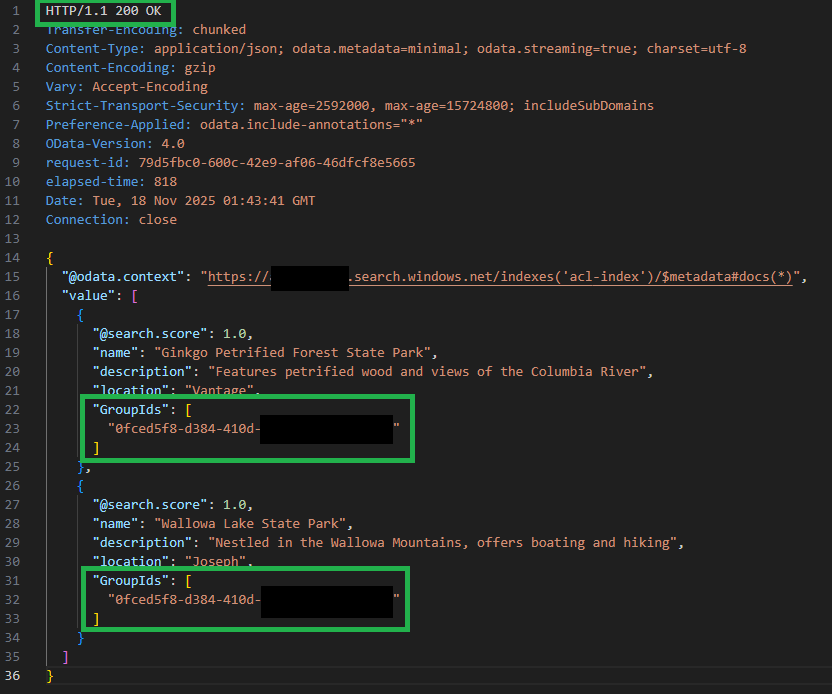
This code block will allow you test your ACL Indexed results using the “x-ms-query-source-authorization” string to only return documents based on the Group or User ACL permissions you have access to.
##Test your index

@baseUrl="Your search service url here"

@token="Your search token here"

##Send Request

Post {{baseUrl}}/indexes/acl-index/docs/search?api-version=2025-08-01-preview  HTTP/1.1
   Authorization: Bearer {{token}}
   x-ms-query-source-authorization: {{token}}
   Content-Type: application/json

{
    "search": "*",
    "select": "name,description,location,GroupIds",
    "orderby": "name asc"
}
You should receive an output like the below example:
Final Thoughts
This example demonstrates how you can construct Azure AI Search queries using the x-ms-query-source-authorization header to securely filter results and enforce document-level ACLs at query time. By passing a user or group token in this header, the search request is automatically trimmed to include only the documents for which that identity has permissions. Rather than relying on manual security filters, this approach uses the permission metadata stored in the index to ensure identity-based access control is applied before any results reach your application or AI model. This pattern provides strong, built-in security for RAG workflows and multitenant applications where isolating user-specific data is essential.
Until next time!